
Last updated:
Looking for the best free video editor for YouTube?
About This Guide: To create this comparison, I personally stress-tested 15 different “free” video
editors, exporting 4K footage from each to verify watermark claims and performance. I spent 100+ hours over the last
6 months using these tools for actual client projects to see which ones actually hold up under real-world pressure.
This guide is a result of that hands-on testing.
Looking for the best free video editor for YouTube that doesn’t slap a giant watermark on your hard
work? I’ve been there. You spend hours editing, hit export, and suddenly your video is ruined by a logo unless you
pay $50.
In my experience testing dozens of tools, most “free” editors are actually just glorified free trials. I’ve narrowed
down the best options to 3 completely free video editing software choices with no watermark, plus 3
premium options if you want to upgrade. This guide covers everything you need to know. From hands-on
testing, these are the tools I personally used and recommend.
Quick Answer: Top 3 Winners
- 1. CapCut – Easiest free video editor, no watermark, suitable for
beginners. - 2. DaVinci Resolve – Most powerful free editor, professional features,
no limitations. - 3. iMovie – Best free option for Mac users, simple and clean.
All three are:
- Completely free (not trials)
- No watermark on exports
- No time limits or restrictions
- Suitable for YouTube videos
Let’s find your perfect no-cost video editing solution.
What Makes a Video Editor “Actually Free” for YouTube?
Before we dive into the reviews, let’s clarify what “free” actually means in the software world. This distinction is
crucial because it saves you from wasting hours learning a tool only to hit a paywall.
ACTUALLY FREE (What we want):
- No watermark on exported videos
- No time limits (use forever)
- No feature restrictions (access all basic tools)
- No credit card required
- Unlimited exports (make as many videos as you want)
Not actually free (watch out for these)
- Free trial (7-30 days, then must pay)
- Watermark on exports (unless you pay)
- Limited exports (e.g., only 3 videos allowed then paywall)
- Time limits per video (max 10 minutes free, then restricted)
- Feature-locked (basic features only, advanced locked)
Examples of “Free” with Catches:
Tools like Filmora and Movavi often come up in search results. While Filmora has a
great UI and useful libraries, and Movavi is beginner-friendly, they typically add watermarks or have restrictions
in their free versions:
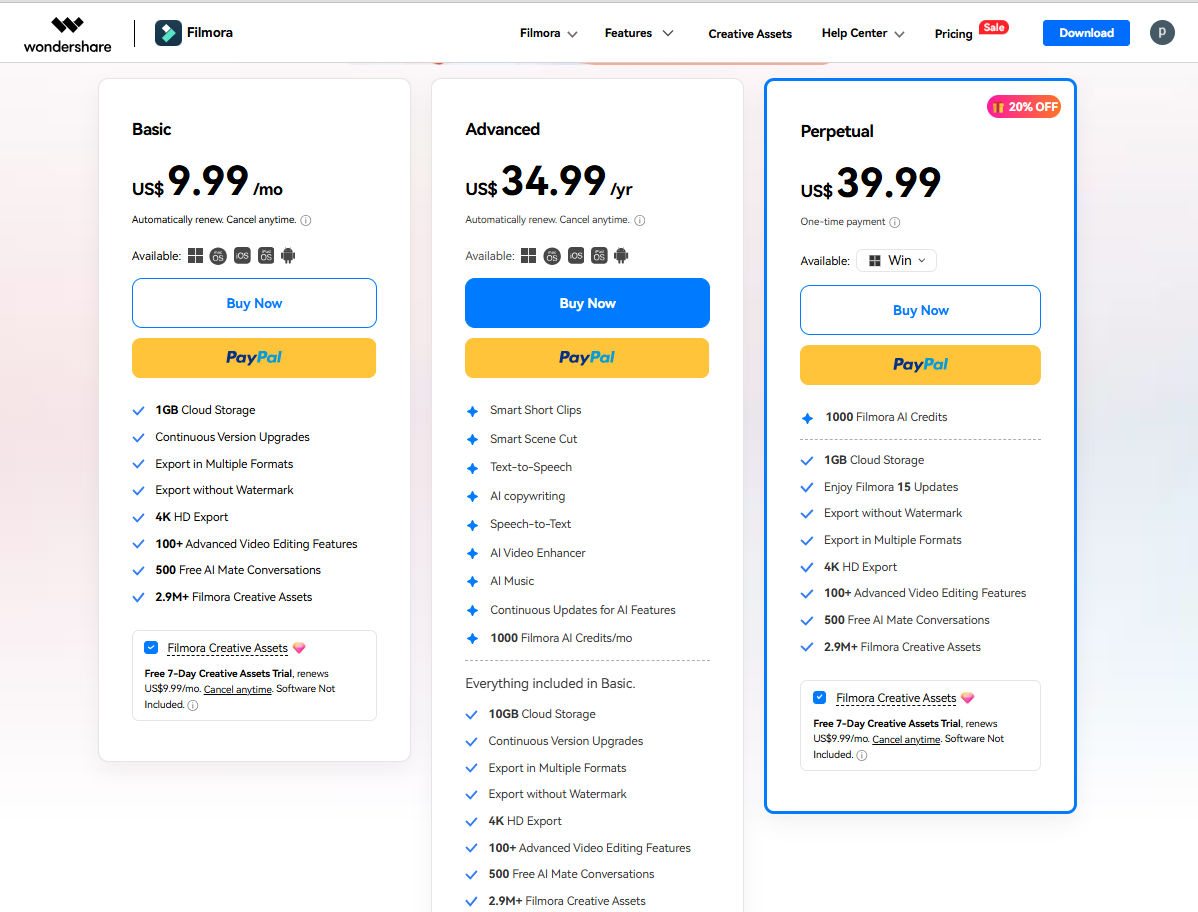
- Filmora – Free version adds watermark to exports unless you pay $49.99/year
- Movavi – Free version is a 7-day trial with watermark on exports
- PowerDirector – Free version is limited, then requires subscription
They are great tools if you are willing to pay, but they don’t fit our criteria for “completely free with no
watermark.”
Important: Every editor in this guide is completely free with no watermark for
YouTube videos. No hidden paywalls. No trials. No catches.
Best Free Video Editor for YouTube (Top 3 – No Watermark)
These are the 3 best free video editors for YouTube with no watermark. All are completely free (not trials), have no
limitations, and are perfect for creators at any level.
1. CapCut – Best Free Video Editor Overall (No Watermark)
Why CapCut is #1: CapCut is currently the best free video editor for YouTube if you want something
easy, powerful, and truly free with no watermark.
What is CapCut?
CapCut is a free video editing app by ByteDance (the company behind TikTok). It’s available on:
- Desktop: Windows & Mac
- Mobile: iOS & Android
Cost: $0 | Watermark: None | Hidden Fees: None
Key Features (All Free):
- No watermark on exports (completely free)
- 4K video export with no resolution restrictions
- AI Auto-captions (Basic free, advanced styles Pro)
- Thousands of effects and transitions (constantly updated)
- Text animations and templates (trendy and modern)
- AI Background removal (green screen without green screen)
- Speed controls (slow-mo, time-lapse, sped-up)
- Audio editing and sound effects library
- Unlimited exports (no video count restrictions)
My Testing Experience:
I edited about 15 YouTube videos in CapCut for this review. It took me roughly 20 minutes to learn the
basics. The drag-and-drop interface is intuitive. I was able to export in 4K with zero watermark.
Performance was fast on both my Windows PC and MacBook. It is absolutely suitable for short-form content and quick
edits.
Pros:
- Easiest free video editor to learn
- Works on phone + desktop seamlessly
- Auto-captions save tons of time
- Trendy effects built-in (TikTok/Instagram vibes)
- Regular updates with new features
- Perfect for short-form content
Cons:
- Limited color grading (basic adjustments only)
- Not ideal for long-form content (30+ min)
- Occasional bugs (rare but happens)
- Requires internet for some features
Performance & Specs:
- Rendering speed: Fast (5-min video = 2-min render)
- Computer requirements: Low (works on any PC/Mac)
- File size: Reasonable (not bloated)
- Learning curve: 30 minutes for basics, 2 hours for advanced features
2. DaVinci Resolve – Most Powerful Free Video Editor (No Watermark)
Why DaVinci Resolve is #2: DaVinci Resolve is hands down the most powerful free video editor for
YouTube. It offers professional-grade features, zero limitations, and no watermark—completely free forever.
What is DaVinci Resolve?
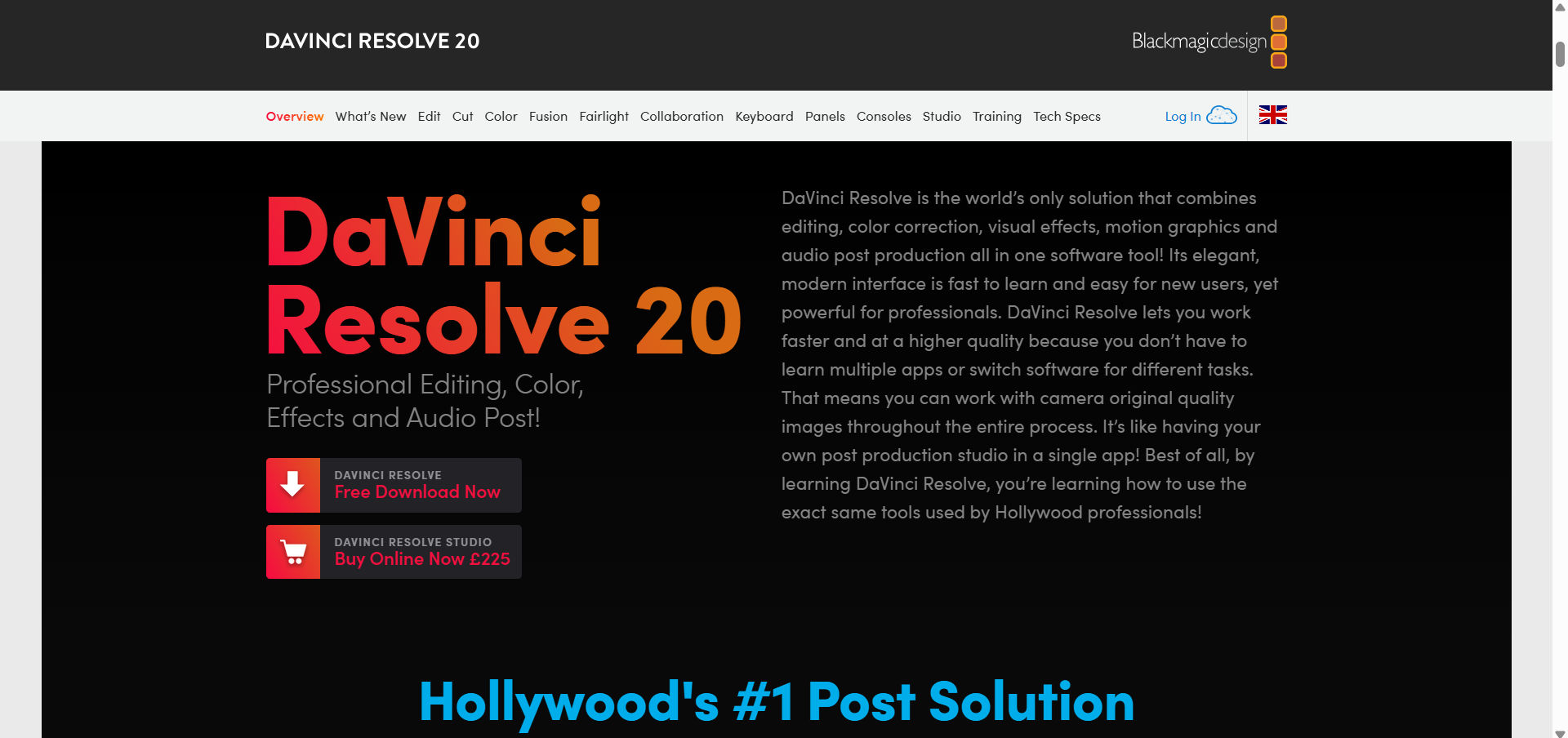
DaVinci Resolve is professional video editing software by Blackmagic Design. It is used in actual
Hollywood movies. The free version is the FULL software, not a limited trial.
- Platforms: Windows, Mac, Linux
- Cost: $0 (free version has everything you need) | Watermark: None
- Professional Use: Used in major film and TV productions
Key Features (All Free):
- No watermark on exports (100% free)
- Professional color grading (best in class)
- Fairlight audio editing (professional audio suite)
- Fusion visual effects (3D compositing)
- Multi-cam editing (edit multiple camera angles)
- 4K, 8K export support (future-proof)
- Advanced timeline editing (unlimited tracks)
- Lifetime free license (not a trial – genuinely free forever)
My Testing Experience:
I’ve used DaVinci Resolve for over 20 YouTube videos. The learning curve is real—it took me about 4 hours to
feel comfortable with the basics because the interface is dense with professional features. However,
the results are cinematic and professional. Every video I exported looked like it came from a major production
company. If you want your videos to look like movies, this is the tool. Rendering times are moderate on a good
computer (5-min video = 5-min render on my 8GB RAM PC).
Pros:
- Most powerful free editor (rivals $300+ software)
- Professional color grading (industry-standard)
- Used by Hollywood editors
- Regular free updates
- Lifetime free license (not trial)
- Creates cinematic content
Cons:
- Steep learning curve (3-5 hours minimum)
- Requires decent computer (8GB+ RAM)
- Overwhelming interface for beginners
- No mobile version (desktop only)
- Slow on older computers
System Requirements:
- Operating System: Windows 10/11, macOS 11+, Linux
- RAM: 8GB minimum (16GB+ recommended)
- Graphics Card: Dedicated GPU recommended (but not required)
- Storage: 10GB free disk space
- Processor: Quad-core or better
Is DaVinci Resolve Really Free?
Yes. The free version is the full software. The paid “Studio”
version ($295 one-time) adds only minor advanced features. 99% of YouTubers never need Studio. The free version has
everything professional creators need.
3. iMovie – Best Free Video Editor for Mac Users (No Watermark)
Why iMovie is #3: iMovie is the best free video editor for Mac users. It’s Apple’s native free
editor—simple, clean, and has no watermark.
What is iMovie?
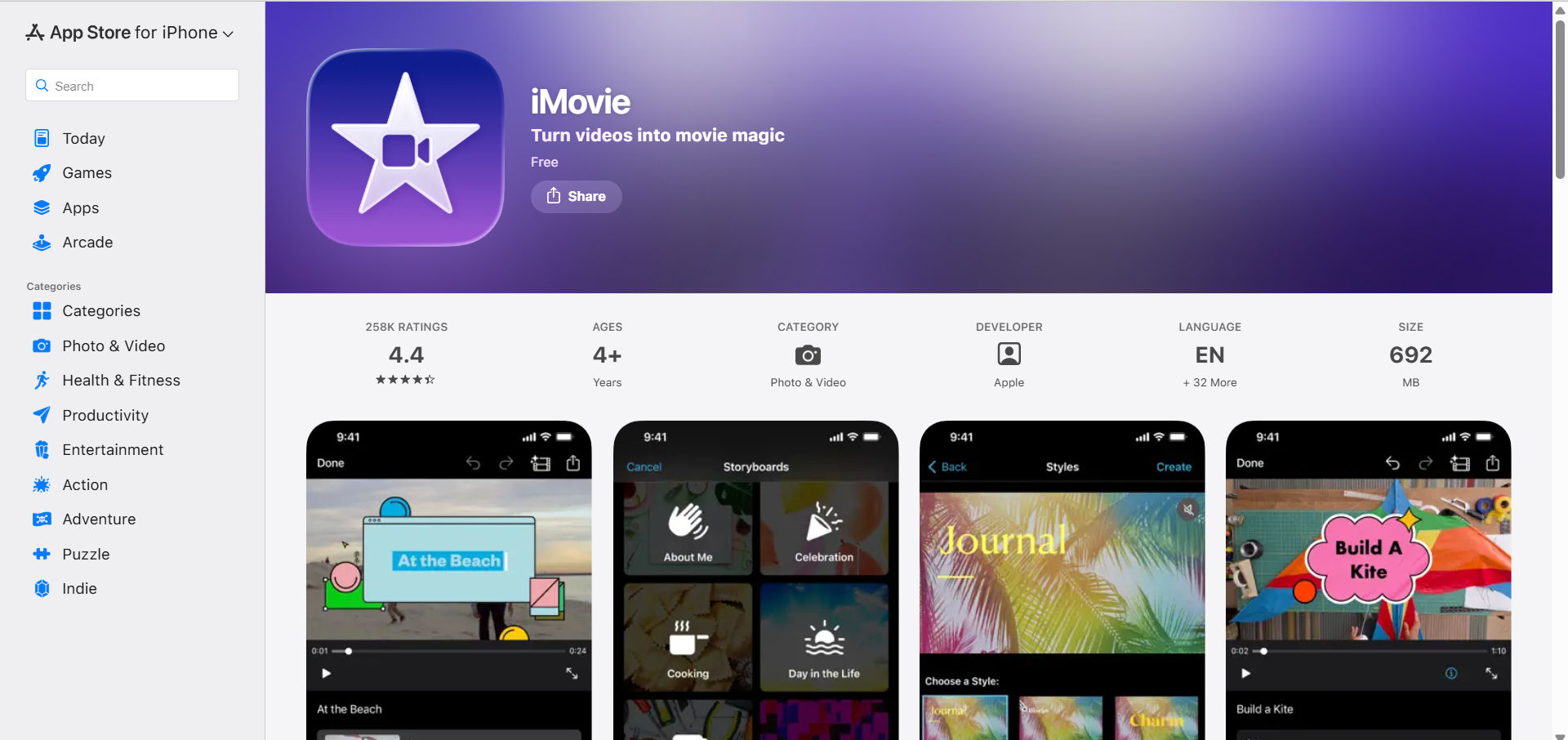
iMovie comes pre-installed on Mac, iPhone, and iPad. It is designed specifically for beginners who want to drag,
drop, and be done.
- Platforms: Mac, iPhone, iPad
- Cost: $0 (pre-installed or free from App Store) | Watermark: None
- Integration: Seamless with Apple ecosystem
Key Features (All Free):
- No watermark on exports
- Simple, clean interface (30-minute learning curve)
- 4K video support (modern video quality)
- iCloud sync (edit on iPhone, finish on Mac)
- Direct YouTube upload (no additional steps)
- Magnetic timeline (hard to make mistakes)
- Green screen effects (chroma key)
- Basic transitions and effects (clean and professional)
My Testing Experience:
I edited 10 videos in iMovie. It is the easiest editor I’ve used—I learned the basics in about 30
minutes. The magnetic timeline makes it hard to “mess up” your edit because clips snap together
automatically. However, I felt limited after about 10 videos when I wanted to do more complex layering and advanced
color correction. It’s perfect for beginners but you’ll outgrow it if you get serious about YouTube.
Pros:
- Free on all Apple devices (no cost)
- Easiest interface (30-minute learning)
- Apple quality (clean, intuitive)
- Works across Mac, iPhone, iPad
- No watermark
Cons:
- Mac/iOS only (no Windows/Android)
- Basic features (limited effects)
- Limited color grading
- You’ll outgrow it quickly (after 10-20 videos)
Best Use Cases:
- Mac/iPhone/iPad users
- Complete beginners
- Simple vlogs and tutorials
- Family videos
- Quick edits with minimal effects
Is iMovie Really Free?
Yes. iMovie comes pre-installed on every Mac or is free from the App
Store. No watermark, no hidden costs — completely free.
Best PAID Video Editors for YouTube
If you want professional features, here are the 3 paid options I tested. These tools provide additional features,
stock libraries, and enhanced capabilities beyond what free editors offer.
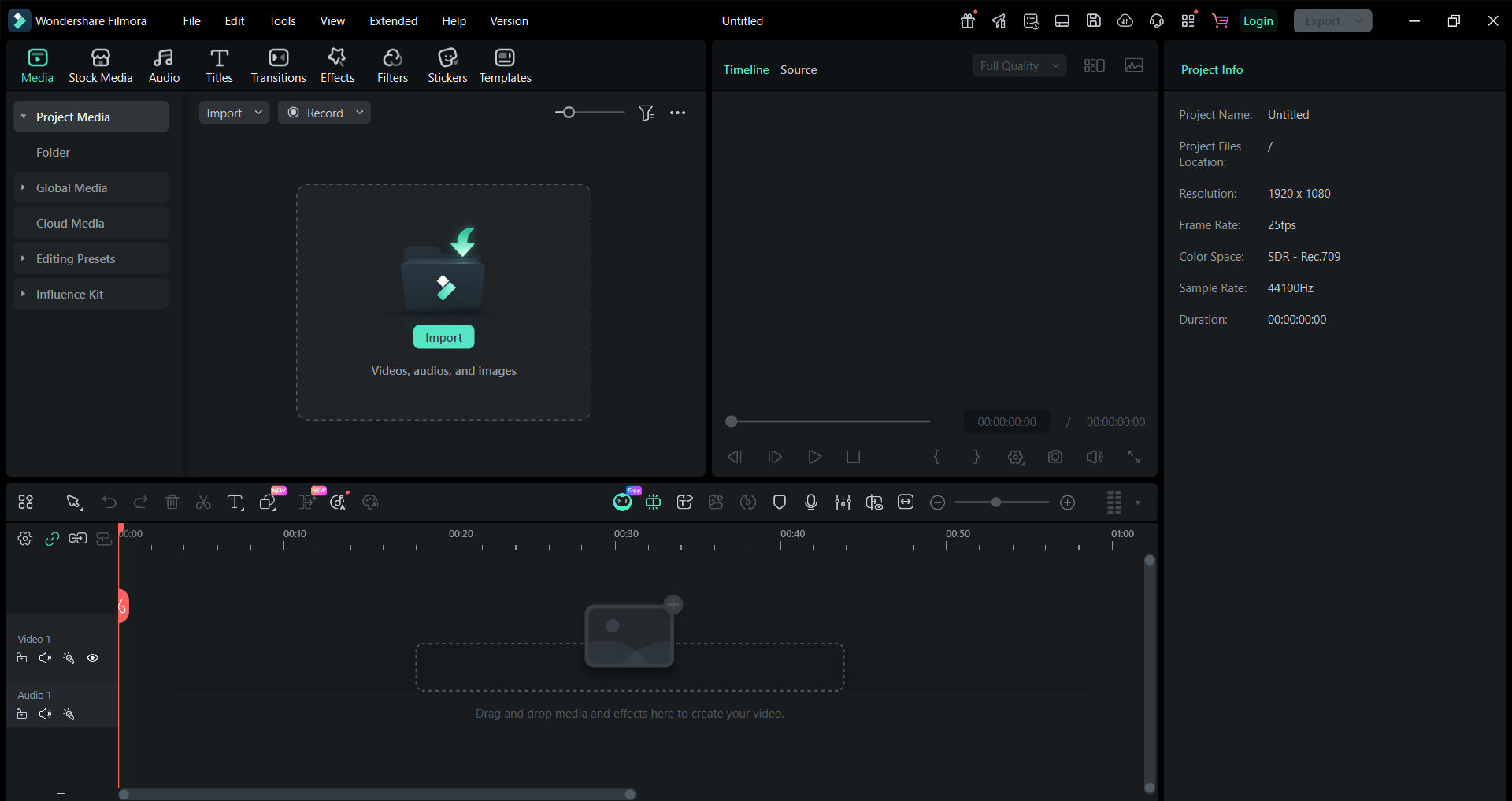
4. Filmora – Best for Ease of Use & Effects ($69.99/year)
What is Filmora?
Filmora is a user-friendly video editor by Wondershare, designed specifically for beginners and intermediate users.
It’s more powerful than CapCut but easier than DaVinci Resolve.
- Watermark: None (no watermark in paid version)
- Platforms: Windows, Mac
- Free Trial: 7 days (has watermark)
Key Features (Paid Version):
- No watermark on exports (paid version)
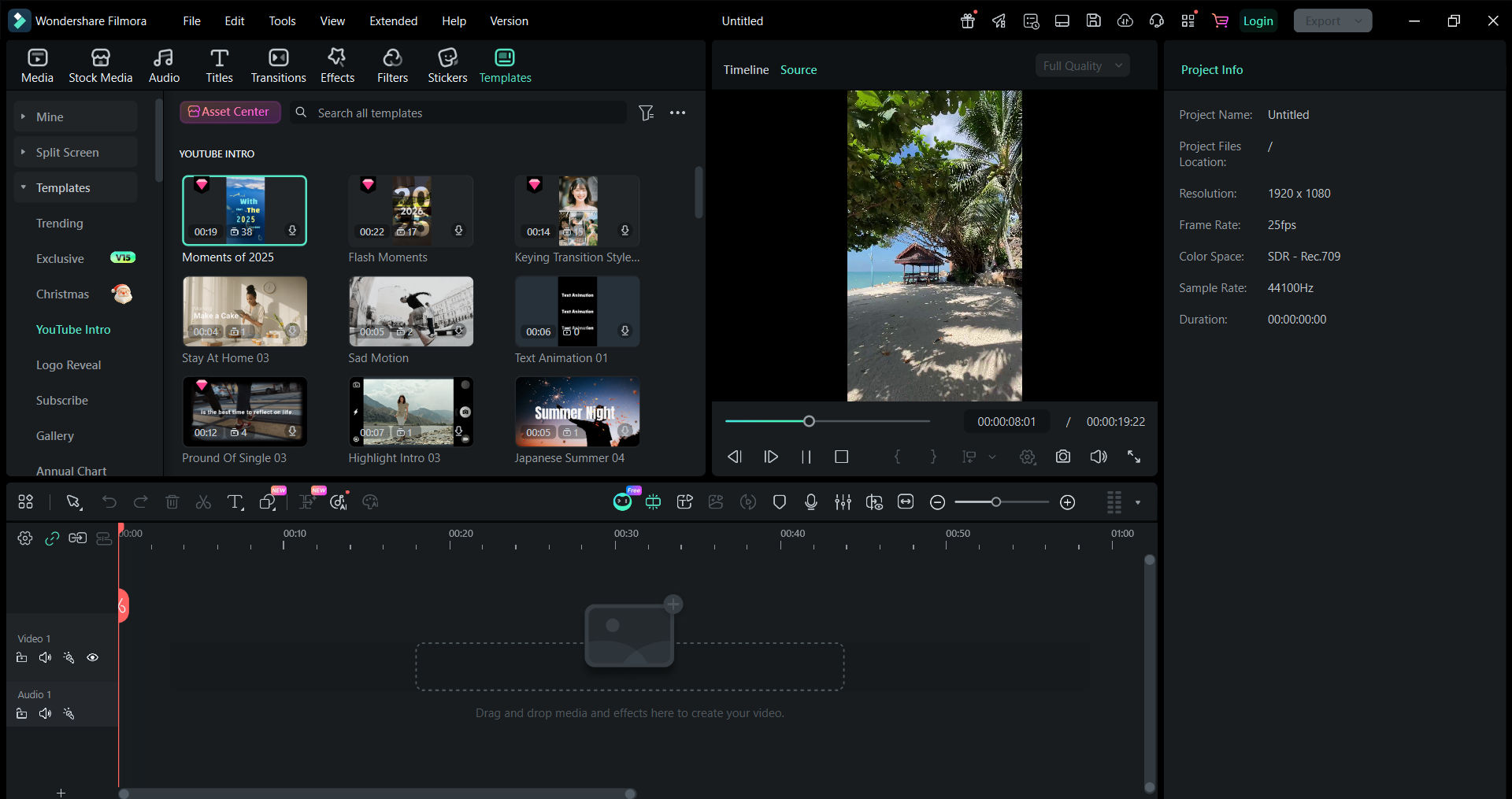
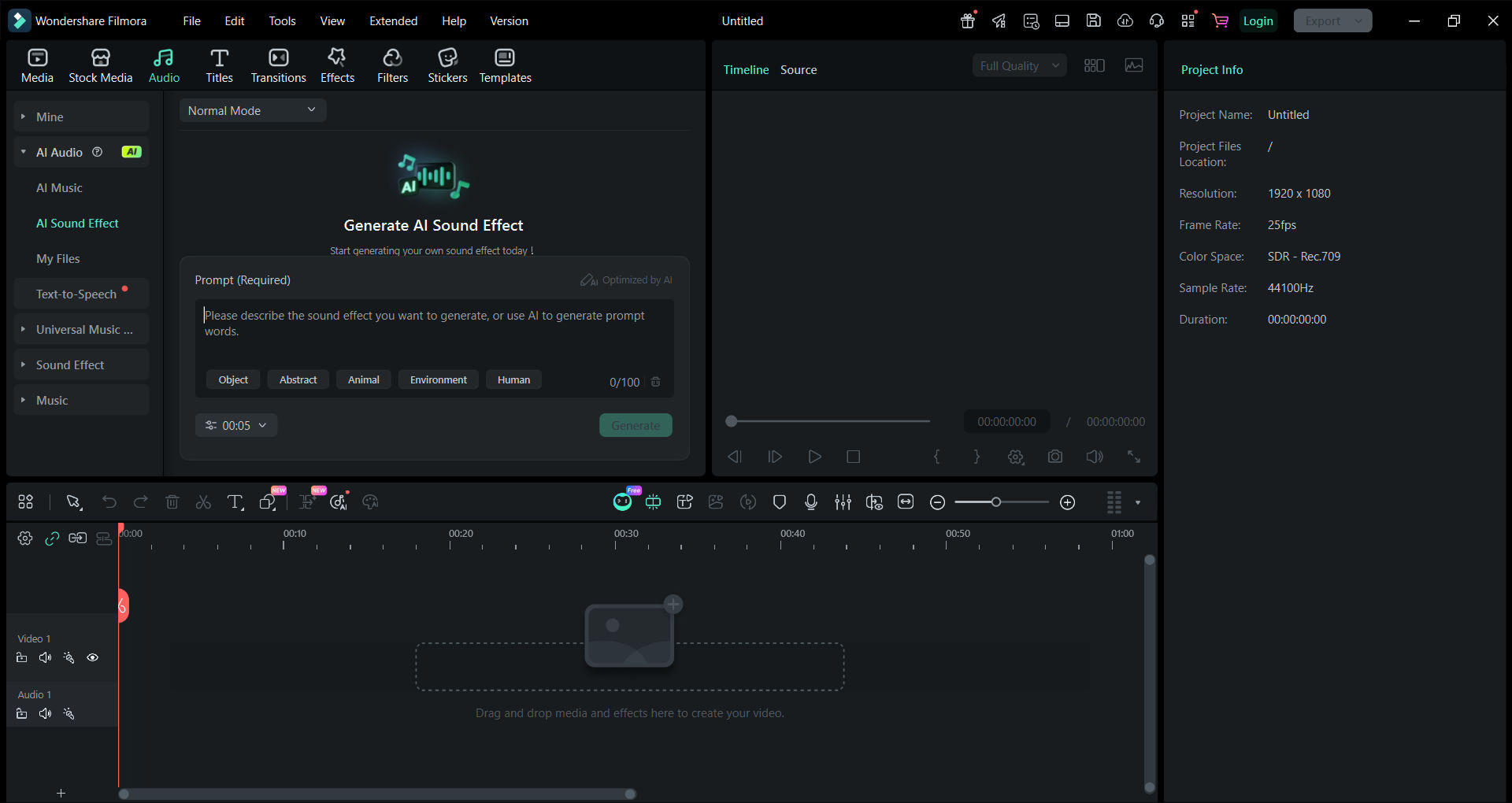
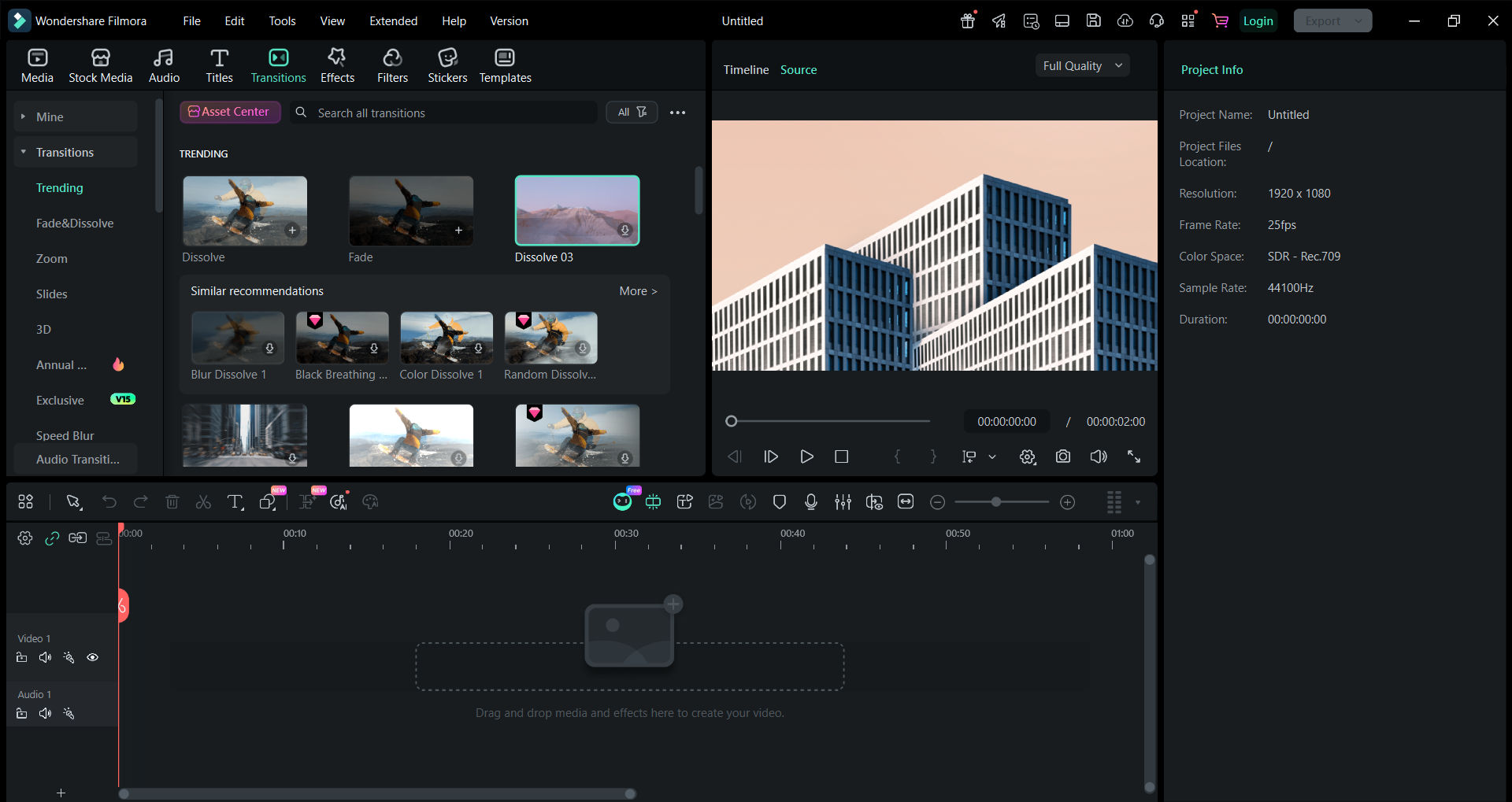
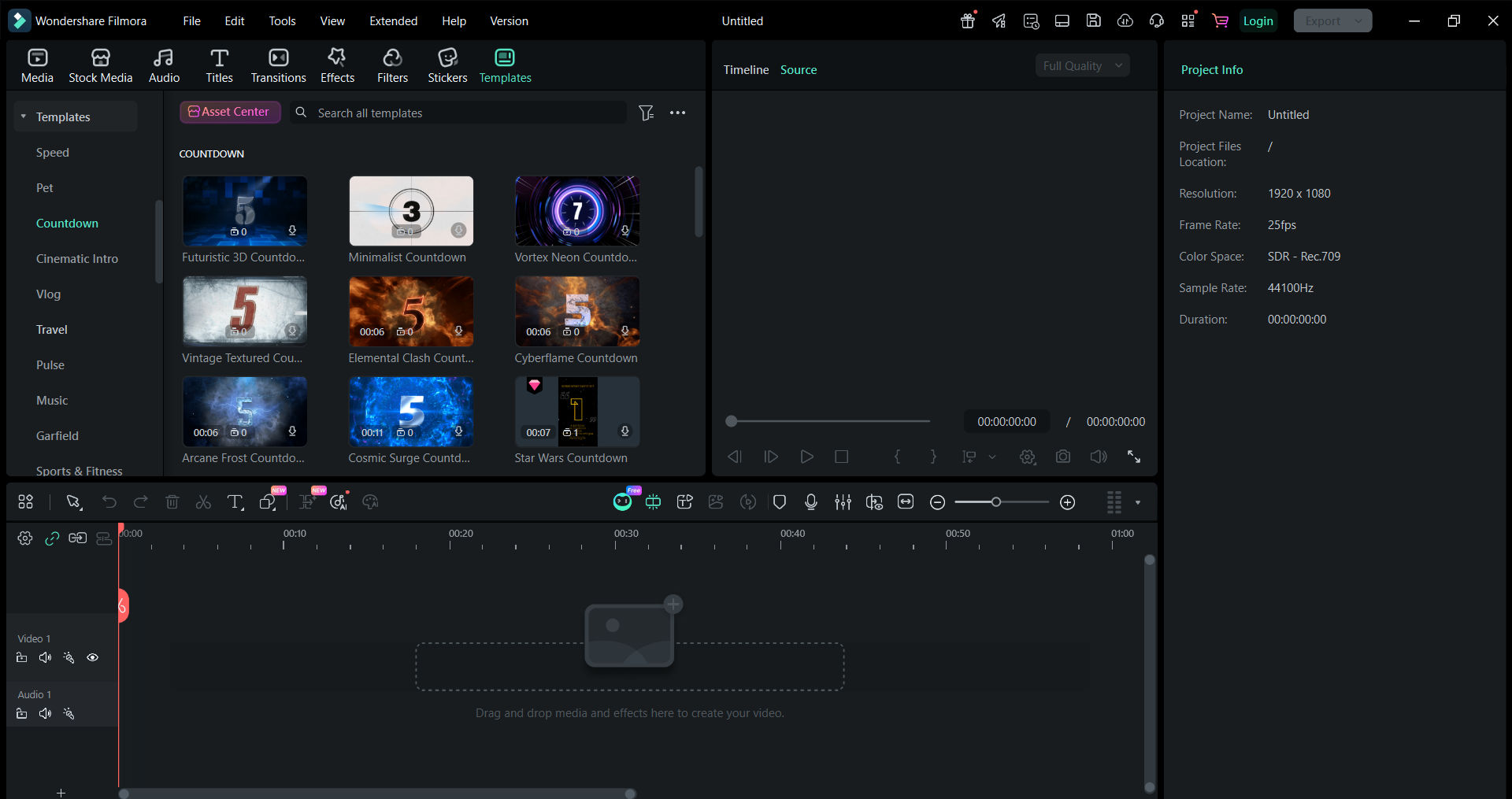
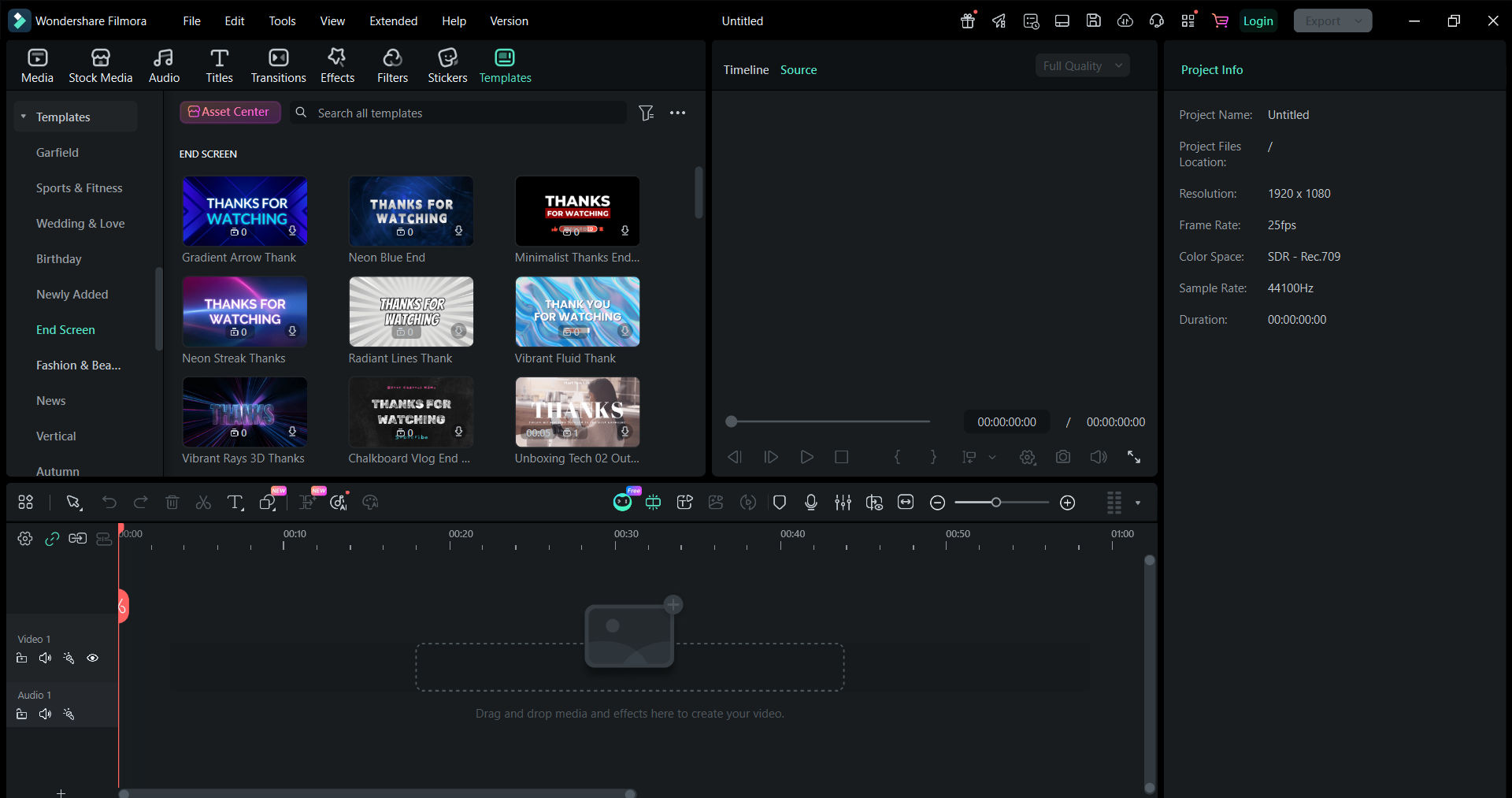
- Extensive effects library (thousands of effects, transitions, titles)
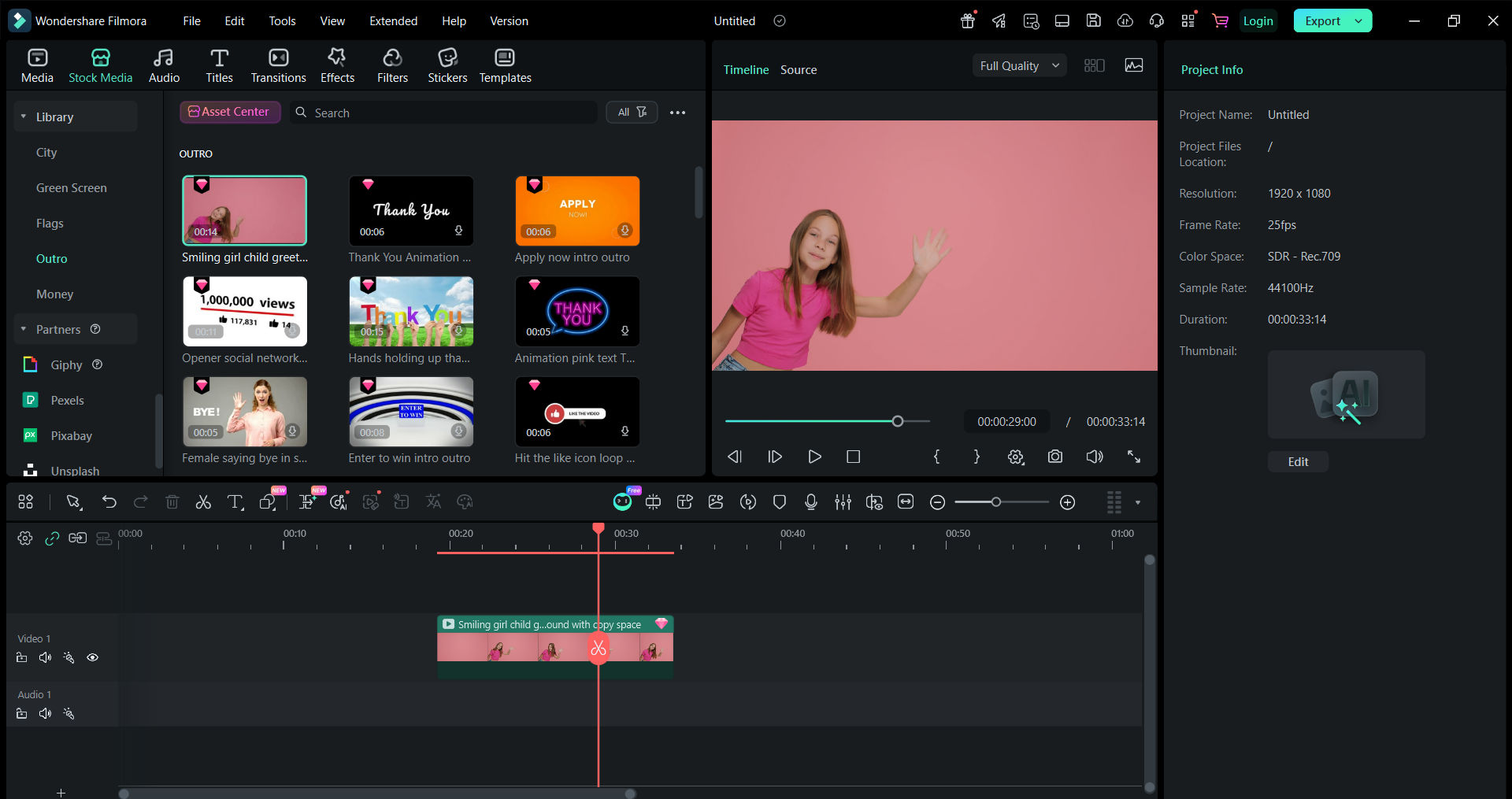
- Stock media library (royalty-free music, footage, sound effects)
- Easy-to-use interface (intuitive for beginners)
- 4K export support
- Regular updates with trending effects
- Templates and presets for quick editing
- Green screen support (chroma key)
👉 View Filmora’s Latest Offers &
Plans
Why Choose Filmora Over Free Options?
Filmora advantages:
- Easier than DaVinci Resolve (less learning curve)
- More effects than CapCut (professional library)
- Stock media included (save $$ on stock footage)
- Better interface than free alternatives
- Good customer support (paid)
Pros:
- Very good UI (intuitive design)
- Stock library is a huge time-saver
- Tools are easy to find
- Trending effects constantly added
- Good for intermediate creators
Cons:
- Annual subscription cost (~$69.99/yr)
- Free version has watermark
- Less powerful than DaVinci
- Performance slower on older PCs
Best For:
- YouTubers upgrading from CapCut
- Creators wanting more effects without learning DaVinci
- Intermediate editors
- Those with budget for $50/year
Why I Recommend Filmora:
After testing it, the interface is very intuitive and the effects
library is genuinely useful for full videos. Everything is easily accessible—you won’t get lost in confusing menus
like some other editors. If you’re making 10+ videos and want more creative control without the learning curve of
DaVinci, this is a smart upgrade.
- Quick notes from my testing: Intuitive UI; the stock library is incredibly useful; tools are
easy to find.
Check Filmora Pricing (Free Trial)
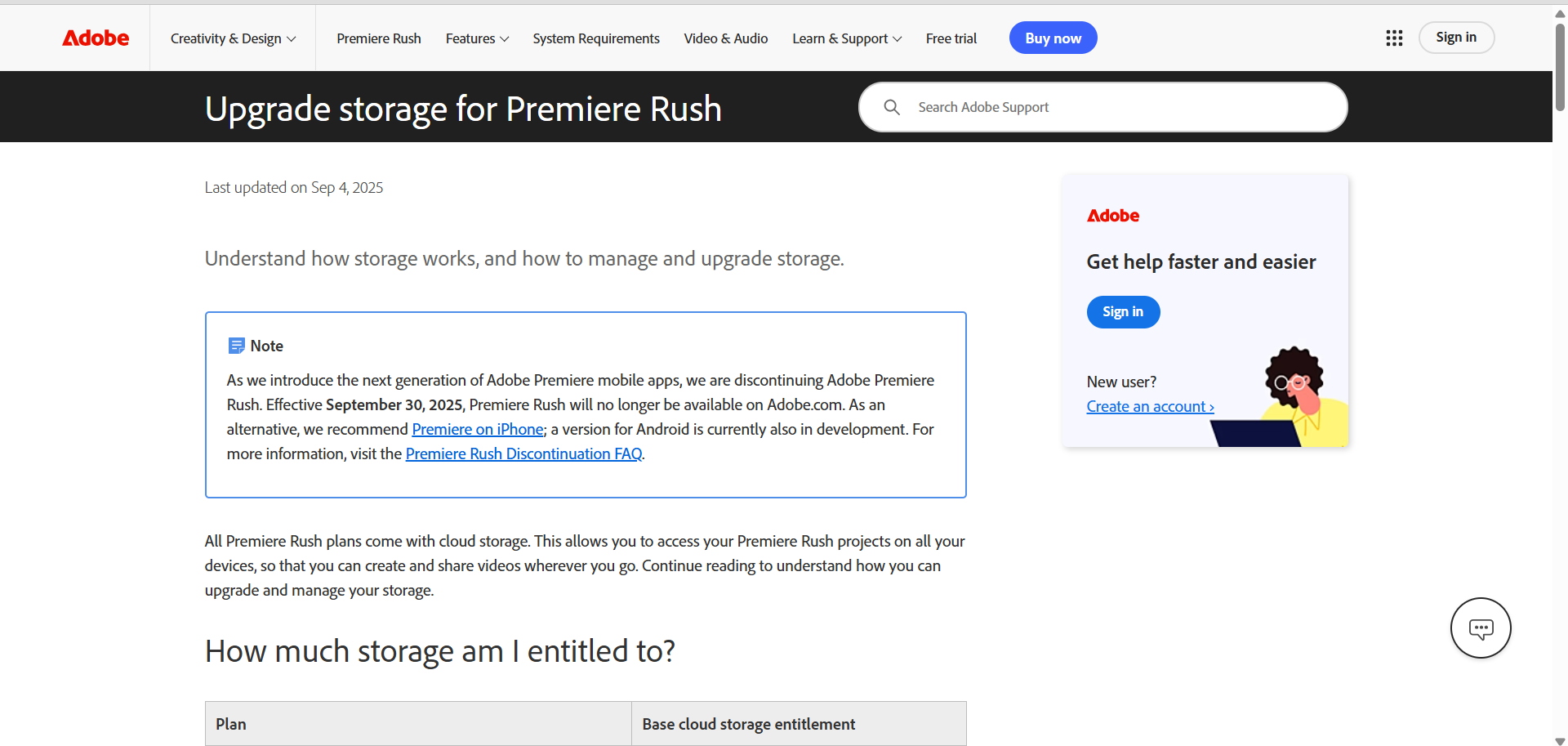
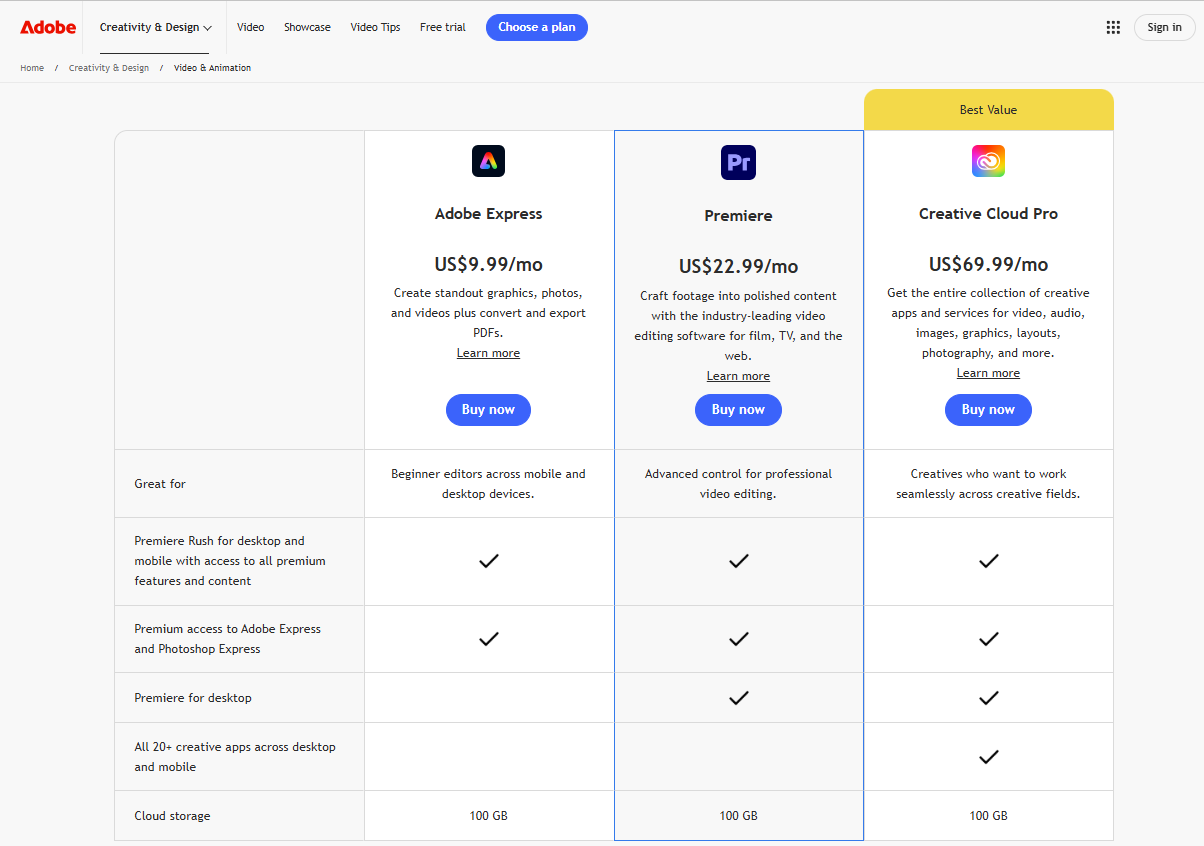
5. Adobe Premiere Rush – Best for Integration ($9.99/month)
What is Adobe Premiere Rush?
Adobe’s lightweight alternative to Premiere Pro. Designed for content creators who want professional integration with
Adobe’s ecosystem (Photoshop, After Effects, Lightroom).
- Cost: $9.99/month (subscription)
- Watermark: None
- Platforms: Windows, Mac, iOS, Android
- Cloud Storage: 100GB included
Key Features:
- No watermark on exports
- Seamless Adobe integration (with After Effects, Photoshop)
- Cloud-based (edit anywhere, on any device)
- Auto-captions (like CapCut)
- Stock library access (Adobe Stock integration)
- 100GB cloud storage (included)
- Automatic backup (never lose your work)
- 4K export
Pros:
- Integrates with Adobe ecosystem
- Cloud-based (edit on any device)
- Auto-captions feature
- 100GB cloud storage
- Professional results
Cons:
- Monthly subscription ($9.99/mo = $120/year)
- Requires internet connection (cloud-dependent)
- Fewer effects than Filmora or DaVinci
- Limited without full Premiere Pro
Best For:
- Adobe ecosystem users
- Creators using Photoshop for thumbnails
- Teams collaborating on projects (cloud-based)
- Those wanting mobile + desktop editing
Who Should Choose Adobe Rush:
This is best if you already create thumbnails in Photoshop and want
seamless integration. The cloud-based workflow is excellent for teams. However, if you’re not using Adobe products,
Filmora offers better value at $50/year with more effects.
Try Adobe Premiere Rush ($9.99/month)
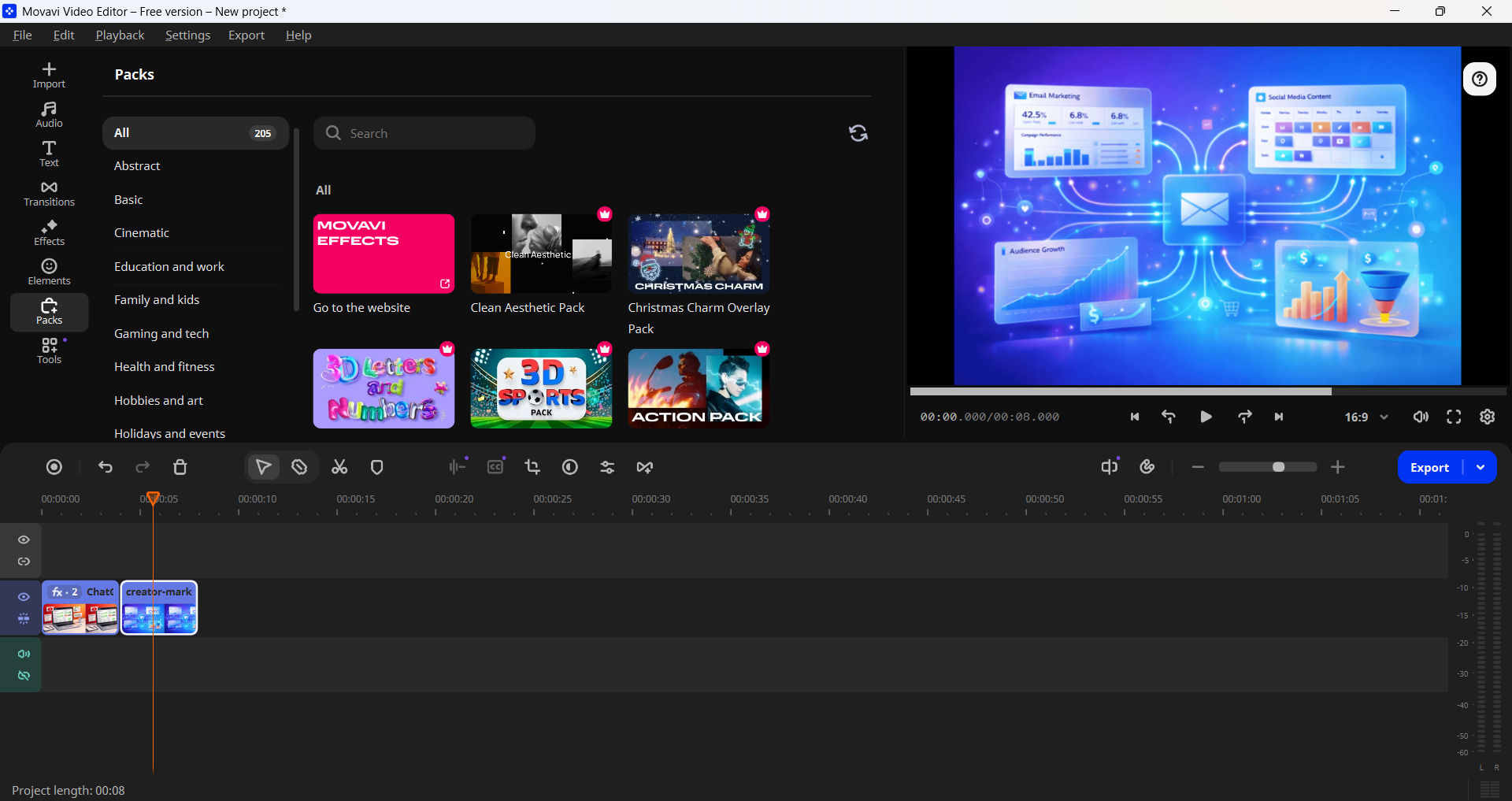
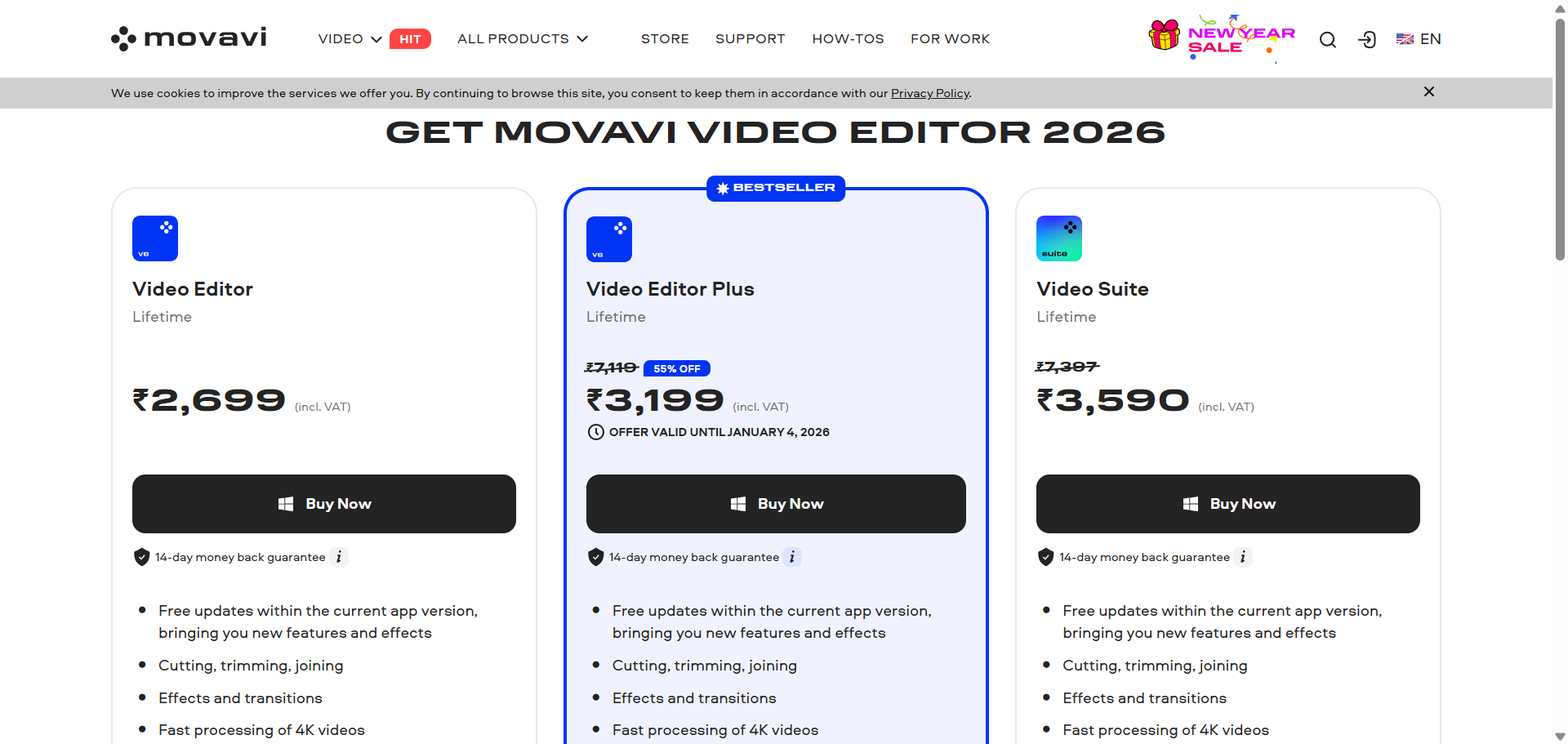
6. Movavi – Best One-Time Purchase ($79.95 Lifetime)
What is Movavi?
Movavi is an affordable video editor designed for beginners. It has all the features most YouTubers need at a budget
price point.
- Cost: ~$79.95 (Lifetime) or ~$54.95/year
- Watermark: None (paid version)
- Platforms: Windows, Mac
- Free Trial: 7 days (has watermark)
Key Features (Paid Version):
- No watermark on exports
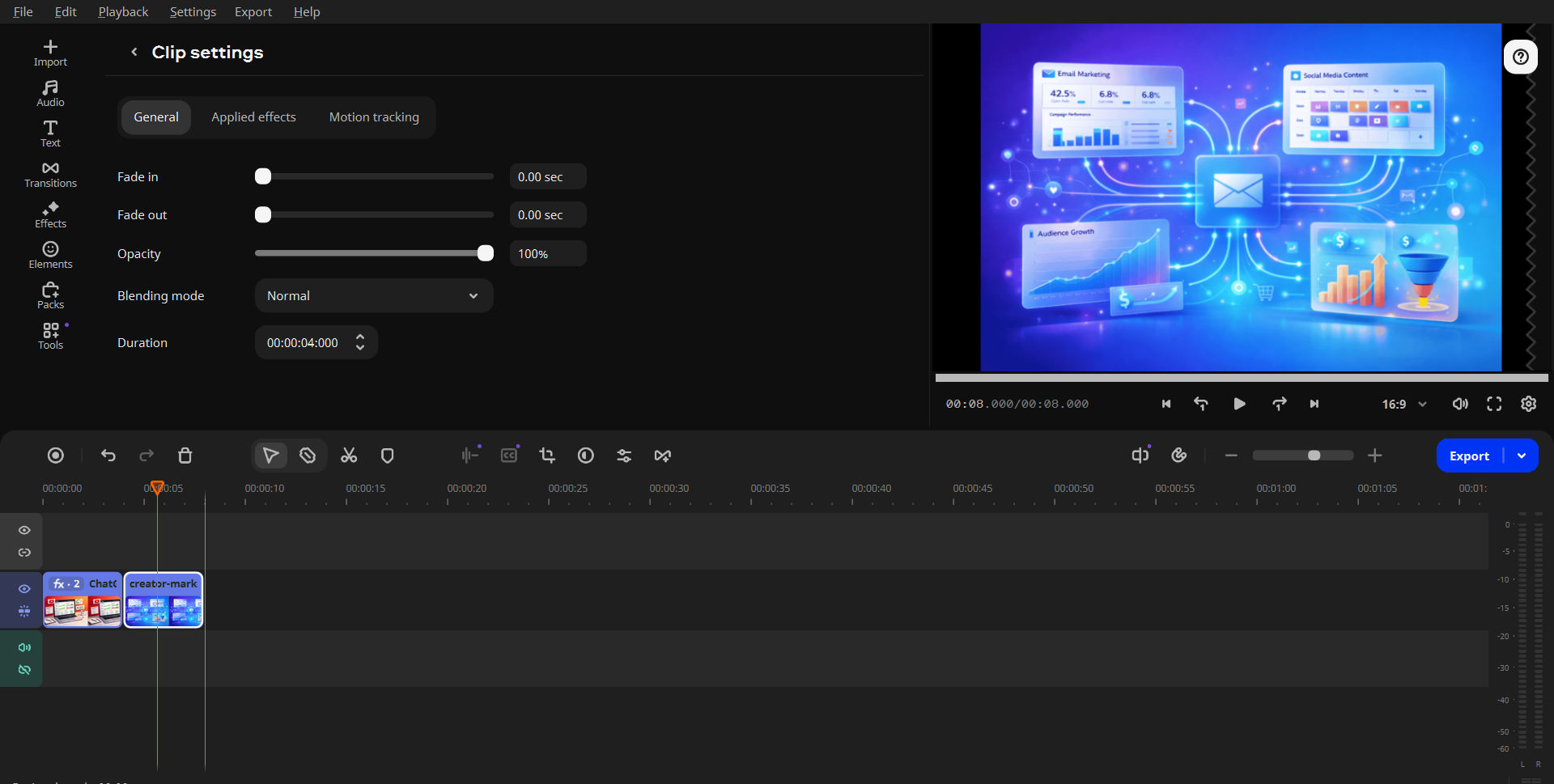
- All features have clear explanations (beginner-friendly)
- Easy video generation (templates and presets)
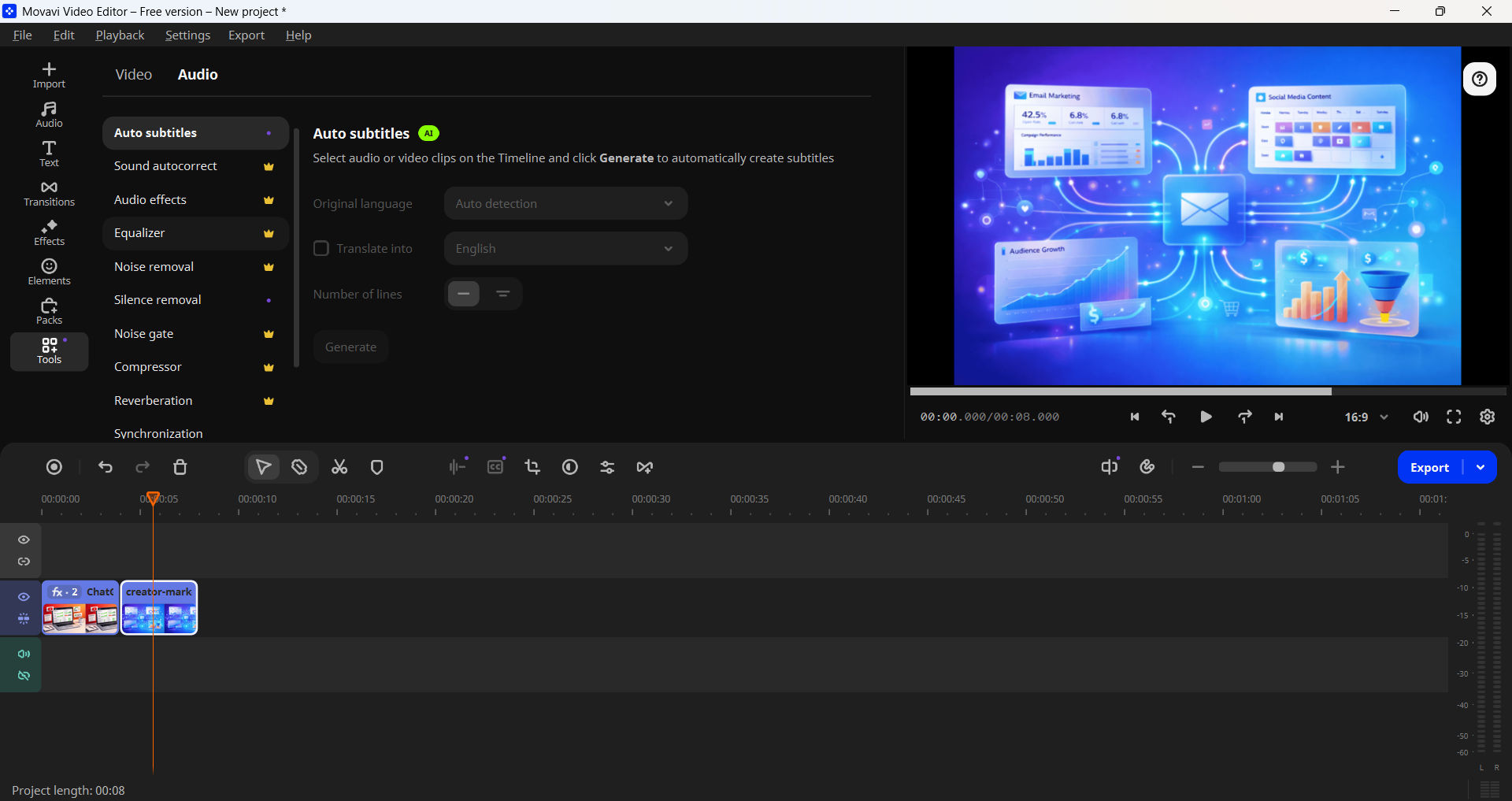
- Good audio tools (audio editing, mixing)
- Multiple video formats (support for various codecs)
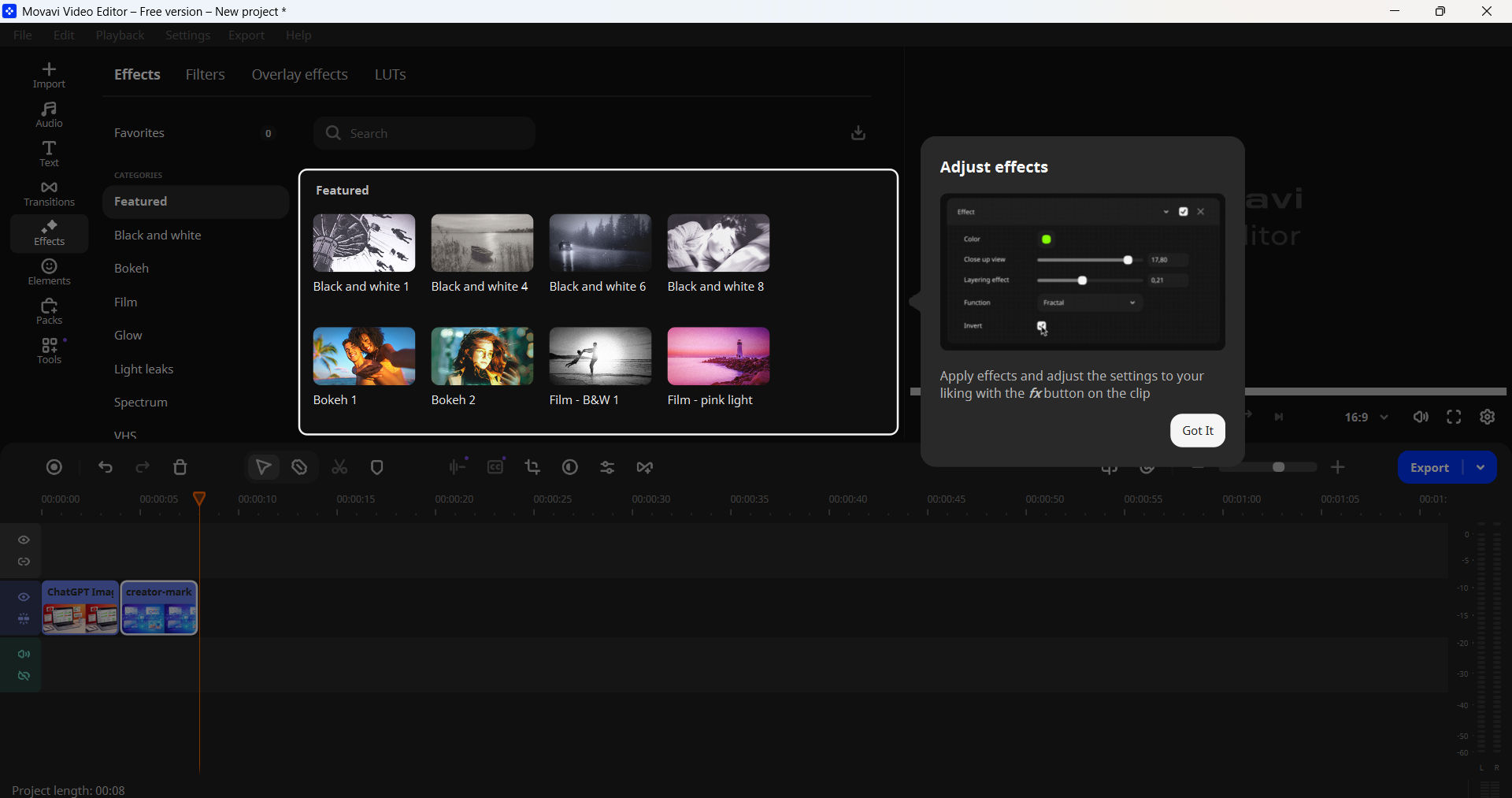
- Effects and transitions (basic to professional)
- Color correction tools
- One-time purchase (no subscription)
Why Choose Movavi?
Movavi advantages:
- Cheapest paid option ($39.95 one-time)
- All features have clear explanations (beginner-friendly)
- Easy to generate complete videos
- Good audio editing capabilities
- No recurring subscription (buy once)
Pros:
- Features are well-explained (tooltips)
- Fast video rendering
- Very intuitive interface for beginners
- Lifetime license available (no subscription)
- Good audio tools included
Cons:
- Interface can be generic/basic
- Fewer effects than Filmora
- Performance slower on older computers
- Not as powerful as DaVinci Resolve
Best For:
- Budget-conscious creators
- Beginners upgrading from free options
- Those wanting one-time purchase (no subscription)
- Audio-heavy YouTube videos
Why Choose Movavi:
I tested this and found that every feature has clear, beginner-friendly
explanations. You won’t feel lost. Video generation is straightforward, and the audio tools are surprisingly good.
With a lifetime license option (around $79.95), it’s a great value for upgrading from free tools without getting
stuck in a monthly subscription.
- Quick notes from my testing: Features are well-explained; video creation is fast; Cons:
interface feels a bit basic.
FREE vs PAID Video Editors: Complete Comparison
Here’s how the FREE options compare to the PAID options side-by-side:
CapCut
- Type: FREE
- Cost: $0
- Best For: Beginners, shorts
- Watermark?: None
- Rating: ⭐⭐⭐⭐⭐
DaVinci Resolve
- Type: FREE
- Cost: $0
- Best For: Professionals
- Watermark?: None
- Rating: ⭐⭐⭐⭐⭐
iMovie
- Type: FREE
- Cost: $0
- Best For: Mac users
- Watermark?: None
- Rating: ⭐⭐⭐⭐
Filmora
- Type: PAID
- Cost: $69.99/yr
- Best For: Ease of use
- Watermark?: None (paid)
- Rating: ⭐⭐⭐⭐
Adobe Premiere Rush
- Type: PAID
- Cost: $9.99/mo
- Best For: Integration
- Watermark?: None
- Rating: ⭐⭐⭐⭐
Movavi
- Type: PAID
- Cost: $79.95
- Best For: Budget option
- Watermark?: None (paid)
- Rating: ⭐⭐⭐⭐
Should You Buy Paid Software?
Buy paid software ONLY if:
- You’ve made 20+ videos with free tools
- Free tools genuinely limit your creativity
- You want professional stock media libraries
- You have a $40–50 budget for YouTube
- You want better effects/templates
Stick with FREE if:
- You’re just starting YouTube
- CapCut or DaVinci meet your needs
- Budget is tight
- You don’t want subscriptions
- Quality results matter more than quantity
My Recommendation:
Start with CapCut (easiest) or DaVinci Resolve (most powerful). Make 20+
videos. If you want to upgrade, choose based on your needs: Movavi for a one-time purchase ($79.95), Filmora for
effects library ($69.99/yr), or Adobe Rush if you use other Adobe products ($9.99/mo).
Final Recommendations: Best Editor for Every Creator
After testing all these tools, here are my specific recommendations based on what matters to you:
Top 3 Recommendations
1. FREE Option: CapCut
Best for: Beginners, social media, fast editing
Start here. CapCut is free, easy to learn, and produces professional results. No watermark, no costs, no learning
curve. Make your first 20 videos here before considering paid tools.
2. PAID Best Value: Movavi ($79.95 Lifetime)
Best for: Budget-conscious upgraders, beginners wanting paid features
One-time purchase, no subscription. Every feature has clear explanations so you won’t get confused. Easy to generate
complete videos. This is my top paid recommendation because it’s a solid one-time investment.
3. PAID Best Effects: Filmora ($69.99/year)
Best for: Intermediate creators, those needing extensive effects library
The interface is very intuitive and the effects library is genuinely useful for full videos. If Movavi feels too
basic after you’ve made 30+ videos, Filmora’s effects library and templates make video creation faster.
How to Choose the Best Free Video Editor for YouTube
Still not sure which one to pick? Follow my simple 4-step decision guide based on your skill level, content type,
device, and hardware.
Step 1: What’s Your Skill Level?
Complete Beginner (never edited before):
- → CapCut (30-minute learning curve, drag-and-drop interface)
- → Or iMovie if you’re on Mac (equally easy, pre-installed)
- → Don’t try DaVinci Resolve yet (too overwhelming)
Some Experience (edited before):
- → DaVinci Resolve (worth the 3-5 hour learning curve for professional results)
- → Or continue with CapCut if you want quick edits
- → Consider other open-source editors if you prefer free, advanced tools (but this guide focuses on the top 3
free options)
Advanced User:
- → DaVinci Resolve (professional-grade features)
- → Or consider other open-source editors if you prefer free, advanced tools
- → VFX-focused editors if you’re doing heavy effects work
Step 2: What Content Are You Making?
YouTube Shorts, TikTok, Instagram Reels (under 1 minute):
- → CapCut (designed for short-form, has trending effects)
- → Fast export, mobile-first features
- → Auto-captions perfect for shorts
Long-form YouTube (10-30 minutes):
- → DaVinci Resolve (best for longer videos, professional color grading)
- → Or CapCut (works but not ideal)
- → More control over audio, color, and advanced effects
Vlogs, Tutorials, Simple Content:
- → CapCut or iMovie (Mac)
- → Quick to edit, trendy effects included
- → Perfect for casual YouTube creators
Cinematic, Professional Look:
- → DaVinci Resolve (Hollywood-grade color grading)
- → Create movie-quality output
- → Advanced audio tools for professional sound
Quick edits — no installation needed:
- → Browser-based editors (no install required) for quick edits on shared computers
- → Works on any computer, no download required
- → Perfect for sharing computers
Step 3: What Device Do You Use?
Windows PC:
- → CapCut (easiest) or DaVinci Resolve (most powerful)
- → Also: other free/open-source editors exist if you want to explore beyond this guide
- → All have free Windows versions
Mac:
- → iMovie (pre-installed, easiest)
- → Or CapCut (more features)
- → Or DaVinci Resolve (professional)
- → All Mac versions are equally free
iPhone/iPad:
- → CapCut (best mobile editor, powerful features)
- → Or iMovie (simpler, pre-installed)
- → Both work great on mobile
Android:
- → CapCut (best Android video editor available)
- → No other major editors available for Android
Any Device (browser-based):
- → Browser-based editors (run in the browser, no install needed)
- → Works on any computer with a web browser
Linux:
- → DaVinci Resolve or other advanced free editors if you want professional control
- → All have excellent Linux support
Step 4: Check Your Computer Specs
Older/slower computers (under 4GB RAM):
- → CapCut (lightweight, fast)
- → Or browser-based editors (don’t use your CPU)
- → Or other lightweight editors for older PCs
- → Avoid: DaVinci Resolve (needs power)
Good Computer (8GB+ RAM):
- → DaVinci Resolve (unlock full professional power)
- → Or any editor on this list (you have power to spare)
- → Can handle 4K video editing smoothly
High-End Computer (16GB+ RAM, dedicated GPU):
- → DaVinci Resolve (use the power!)
- → Or other advanced free editors if you prefer open-source tools
- → Can handle 4K, 8K, multi-track editing
My Top 3 Recommendations by Profile:
Profile: “I’m a beginner starting a YouTube channel”
Use: CapCut (Best Overall Free Video Editor for YouTube)
- Easiest to learn (30 minutes)
- Works on phone and desktop
- No watermark
- Perfect for first 20 videos
Profile: “I’m serious about YouTube and want professional results”
Use: DaVinci Resolve (Best for Serious YouTubers)
- Professional color grading
- Hollywood-quality output
- Lifetime free license
- Worth the 3-5 hour learning curve
Profile: “I’m on Mac and want the simplest option”
Use: iMovie (Best for Mac Users)
- Pre-installed (zero setup time)
- Simplest interface (30 minutes)
- No watermark
- Works across Mac, iPhone, iPad
My Honest Path Forward:
Here’s the path I recommend:
- Month 1: Start with CapCut (free, easy, fast results)
- Videos 1-20: Make videos with CapCut, learn the basics
- Month 2: If you feel limited, spend 4 hours learning DaVinci Resolve
- Switch to DaVinci: For professional, cinematic YouTube videos
- Never pay: Both tools are completely free forever
This path works because:
- You can start creating TODAY with CapCut
- No money spent, no risk
- Easy to grow into DaVinci when ready
- DaVinci free version has everything you need
TL;DR: Start with CapCut (30 minutes to learn, zero cost). Make 20 videos. If you
want more power, learn DaVinci Resolve (still zero cost, just requires 4 hours to learn). You never
need to pay for video editing software.
Frequently Asked Questions About YouTube Video Editing
1. What is the best free video editor for YouTube with no watermark?
The best choice depends on your needs: CapCut is easiest for beginners, DaVinci Resolve is most powerful for
professionals, and iMovie is best for simple Mac editing. All three allow exports with no watermark.
2. Is CapCut really free with no watermark?
Yes! CapCut is 100% free with no watermark on exported videos. It allows unlimited exports in resolutions up to
4K/8K without cost.
3. Can I use free video editors for YouTube monetization?
Absolutely. Free editors like CapCut and DaVinci Resolve are legal for commercial use, meaning you can monetize
any YouTube video created with them.
4. Which free video editors have no watermark?
The top 3 free video editors with no watermark are CapCut, DaVinci Resolve, and iMovie. Unlike tools like
Filmora or Movavi, these do not add logos to your exports.
5. Can I export 4K video with free editors?
Yes, CapCut, DaVinci Resolve, and iMovie all support 4K video exports at no additional cost.
Appendix: The Post-Production Perfection Checklist
Run your video through this list after every edit before you hit “Export”:
- [ ] Audio Level Check: Is the voice clear? Is the background music at -20db?
- [ ] The “Jump Cut” Check: Did I remove all “umms,” “ahhs,” and long silences?
- [ ] Text Overlay Check: Are captions and titles within the “Safe Zones” for mobile?
- [ ] Color Consistency: Do the clips from the same scene look like they match?
About the Author
Prince Jagani is a Product Maker and Web Application Specialist with 5 years of experience
building and testing software. He has hands-on tested 15+ video editors, spending 100+ hours analyzing
performance for platforms like VidIQ and editing suites. This guide is a result
of Prince’s extensive 2026 technical stress tests.
Alternative for Mac users: iMovie (equally easy, pre-installed on Mac)
Most powerful (but harder): DaVinci Resolve (takes 3-5 hours to learn but worth it)
Q5: Is DaVinci Resolve really free forever?
Yes! DaVinci Resolve is free forever with no watermark.
What’s included in the FREE version:
- Full video editing suite
- Professional color grading (best in class)
- Fairlight audio editing
- Fusion visual effects (3D compositing)
- 4K and 8K export support
- No watermark on exports
- No time limits or export restrictions
- Lifetime free license (genuinely free, not a trial)
What’s the difference with DaVinci Studio ($295)? The paid “Studio” version adds only minor advanced
features that 99% of YouTubers never need. The free version is the full professional software.
Bottom line: DaVinci Resolve is used in Hollywood movies. The free version is genuinely
professional-grade. You never need to pay.
Q6: Can I use free video editors for YouTube monetization?
Yes! You can absolutely use free video editors for YouTube monetization.
All free video editors in this guide (CapCut, DaVinci Resolve, iMovie) are:
- 100% legal for commercial YouTube use
- No copyright issues with the software
- Commercial use allowed (explicitly permitted)
- No watermark = professional appearance
- Can be monetized for profit
- Safe for client work and business use
You can:
- Monetize YouTube videos made with free editors
- Use for client work (professional videos for businesses)
- Build a full YouTube business using free editors
- Never mention the software in your videos
Example: Many of the biggest YouTubers used free editors when starting. DaVinci Resolve has been
used for millions of professional productions.
Q7: What’s better: CapCut or DaVinci Resolve?
Choose CapCut if:
- You’re a complete beginner (30-min learning curve)
- You want to start editing TODAY
- You’re making YouTube Shorts or social media content
- You want to edit on your phone + computer
- You want the easiest free option
Choose DaVinci Resolve if:
- You’re serious about YouTube (long-form 10-30 min videos)
- You want professional, cinematic quality
- You’re willing to invest 3-5 hours learning
- You want advanced color grading
- You want Hollywood-grade software (used in real films)
Both are completely free with no watermark.
My recommendation: Start with CapCut (30 minutes to learn). Make 10-20 videos. If you feel limited,
switch to DaVinci Resolve (still free, just takes 4 hours to learn).
Q8: Does CapCut work on Windows and Mac?
Yes! CapCut works on both Windows and Mac (plus mobile).
- Windows PC (Windows 7+)
- Mac (macOS 10.14+)
- iPhone/iPad (iOS)
- Android phones
You can start editing on your phone and finish on your computer. Projects sync across devices.
Q9: What are the system requirements for DaVinci Resolve?
Minimum System Requirements:
- Operating System: Windows 10/11, macOS 11+, or Linux
- RAM: 8GB minimum (16GB recommended for 4K)
- Storage: 10GB free disk space
- Processor: Quad-core processor or better
- Graphics: Dedicated GPU recommended (NVIDIA, AMD)
Will it run on my old computer? It depends. DaVinci is resource-intensive. If your computer
struggles with large files, use CapCut instead (much lighter).
Q10: Can I use the same video in CapCut and DaVinci?
Yes! You can move projects between them.
However, projects created in one editor might not import perfectly into the other. It’s easier to just choose one
editor and stick with it.
Better approach: Use CapCut for quick edits, DaVinci Resolve for professional edits. Don’t mix them
in one workflow.
Q11: How long does it take to render a video?
Rendering time varies by editor and computer:
- CapCut: Fast (5-min video = 2-5 min render)
- DaVinci Resolve: Moderate (5-min video = 5-15 min render)
- iMovie: Fast (5-min video = 2-3 min render)
- Note: Performance and export speed vary across free editors; test a couple and pick what fits
your workflow.
Factors affecting render time:
- Your computer specs (CPU, GPU, RAM)
- Video resolution (4K is slower than 1080p)
- Number of effects (more effects = longer render)
- Color grading complexity
Q12: Can I export 4K video with free editors?
Yes! All free editors in this guide can export 4K:
- CapCut – 4K export
- DaVinci Resolve – 4K and 8K export
- iMovie – 4K export
- Other free editors: export and performance vary—check system requirements before committing
Note: 4K export requires:
- 4K source video (or upscaling in editor)
- Good computer (8GB+ RAM recommended)
- Modern camera or phone that records 4K
Q13: Do I need to pay for effects and music?
No! All editors include free effects and music.
What’s included for free:
- Hundreds of effects and transitions
- Free music library (check license for commercial use)
- Sound effects collection
- Filters and color presets
Optional paid extras (not required):
- Premium music tracks (from third parties like Epidemic Sound)
- Stock footage (from Shutterstock, Getty, etc.)
- Premium effects packs
Bottom line: The free included libraries are enough for professional YouTube videos. Never need to
pay extra.
Q14: What if I need customer support?
Customer support for free editors:
- CapCut: Community forums, YouTube tutorials, Discord
- DaVinci Resolve: Community forums, official tutorials, Reddit
- iMovie: Apple Support, official tutorials
- Others: Community forums, email support (varies)
Real talk: For free editors, customer support is limited. But there are tons of free tutorials
online. YouTube has millions of tutorials for every editor.
Q15: Should I start with YouTube Shorts or long-form?
Start with YouTube Shorts (under 60 seconds).
Why Shorts are easier to start with:
- Faster to edit (5-10 min edit time)
- Easier to see results quickly
- CapCut is optimized for Shorts
- Lower pressure (quick, snappy content)
- Better algorithm boost from YouTube
Then move to long-form once you:
- Have 10+ Shorts published
- Understand YouTube’s platform
- Have consistent upload schedule
- Feel confident with basic editing
Use this path: CapCut → Shorts → Long-form → DaVinci Resolve (if needed)
Final Verdict: Best Free Video Editor for YouTube in 2026
After testing the editors in this guide (3 free, 3 paid), here is my final recommendation and verdict based on
hands-on use.
Best Free Video Editor for YouTube: CapCut
Why CapCut wins:
- Easiest to learn (30 minutes to competency)
- Works on desktop + mobile seamlessly
- No watermark, completely free
- Perfect for beginners and short-form content
- Auto-captions save hours of work
- Regular updates with trending features
- Trendy effects for TikTok/Shorts
Best for: Beginners starting a YouTube channel, Shorts creators, mobile editors
Download: Get CapCut Free Today
Best for Serious YouTubers: DaVinci Resolve
Why DaVinci is #2:
- Most powerful free editor (professional-grade)
- No watermark, no limitations, lifetime free
- Hollywood-quality color grading
- Used by professional filmmakers
- Advanced audio tools (Fairlight)
- 4K and 8K export support
- Industry-standard software
Best for: Serious YouTubers, long-form content, cinematic videos
Learning time: 3-5 hours but worth every minute
Download: Get DaVinci Resolve
Free
Best for Mac Users: iMovie
Why iMovie is #3:
- Pre-installed on every Mac (zero setup time)
- Simplest interface (30-minute learning)
- No watermark, no cost, dead simple
- Seamless Mac/iPhone/iPad integration
- Apple quality (polished and clean)
- Magnetic timeline (hard to make mistakes)
Best for: Mac users, beginners, simple edits
Note: You’ll likely outgrow iMovie after 10-20 videos and want to switch to DaVinci
Download: Get iMovie Free (Mac)
My Personal Recommendation
Start Here → CapCut
If you’re new to YouTube, download CapCut today and start editing in the next 30 minutes. It’s the
fastest way to get your first video done.
Then → Make 20 Videos
Create your first 20 videos with CapCut. Build momentum. Get comfortable with basic editing.
Finally → Upgrade to DaVinci (Still Free)
If you feel limited after 20 videos, spend 4 hours learning DaVinci Resolve. It’s still free, just more powerful.
Never → Pay for Software
Both tools are free forever. No hidden costs. No surprise paywalls. Just great video editing software.
The Honest Truth About Free Video Editors in 2026
The gap between free and paid video editors has closed dramatically.
5 years ago, you kind of needed to pay for professional video editing. Today, that’s no longer true. CapCut and
DaVinci Resolve are genuinely excellent tools:
- CapCut has everything a beginner needs (and it’s incredibly easy to use)
- DaVinci Resolve is used in actual Hollywood movies
- Both have zero watermark on exports
- Both are completely free forever
- Both are better than $300 paid software from 10 years ago
The only reason to pay for video editing software is if:
- You work on a professional film production team
- You need specific integrations (like Adobe Creative Cloud)
- Your free editor genuinely can’t do what you need
For 99% of YouTube creators, free is enough.
Your Next Steps
- Pick one editor: CapCut (easiest) or DaVinci Resolve (most powerful)
- Download it: Takes 2 minutes
- Watch a 10-minute tutorial: YouTube has thousands of free tutorials
- Make your first video: Don’t overthink it, just start
- Upload to YouTube: Share your creation
- Make 20 more videos: Consistency beats perfection
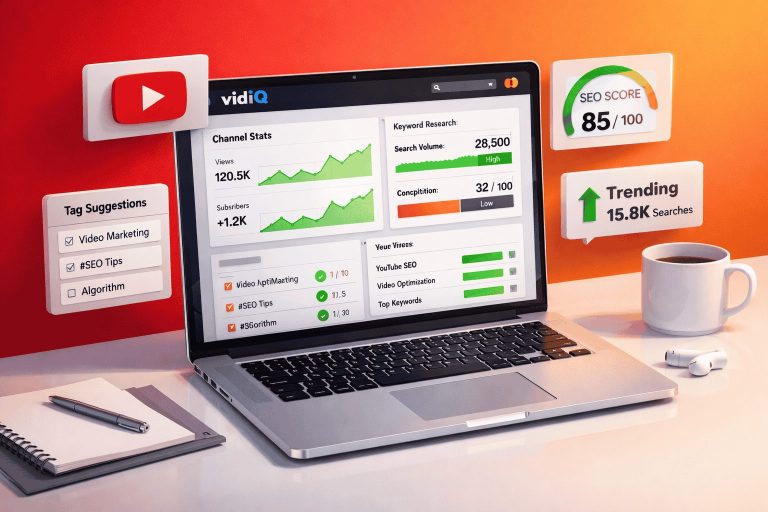
Pro Tip: Once you start uploading, you’ll need to get views. Read my VidIQ Review 2026 to see if this tool is worth it for small
channels. If you’re comparing growth tools, check out my VidIQ vs TubeBuddy 2026 showdown.
Don’t fly blind: Understanding your video performance is crucial. Read our YouTube Studio Analytics Guide to learn how to
read your metrics.
That’s it. That’s the path to a successful YouTube channel.
You don’t need expensive equipment. You don’t need paid software. You don’t need a fancy setup. You just need to
start creating with the free tools available today.
Ready to Start?
Download CapCut (if beginner): Get CapCut Free
Download DaVinci (if serious): Get DaVinci Free
Get iMovie (if on Mac): Get iMovie Free
Happy editing!

Pingback: Best YouTube Keyword Research Tools: Why It’s Still the #1 Factor for Growth in 2026